The purpose of this exercise is to get you set up with the software tools we’ll use in PIC16B, including Anaconda, git + GitHub, and Quarto.
1. Install and Configure Anaconda
An important part of PIC16B is navigating the Python package ecosystem.
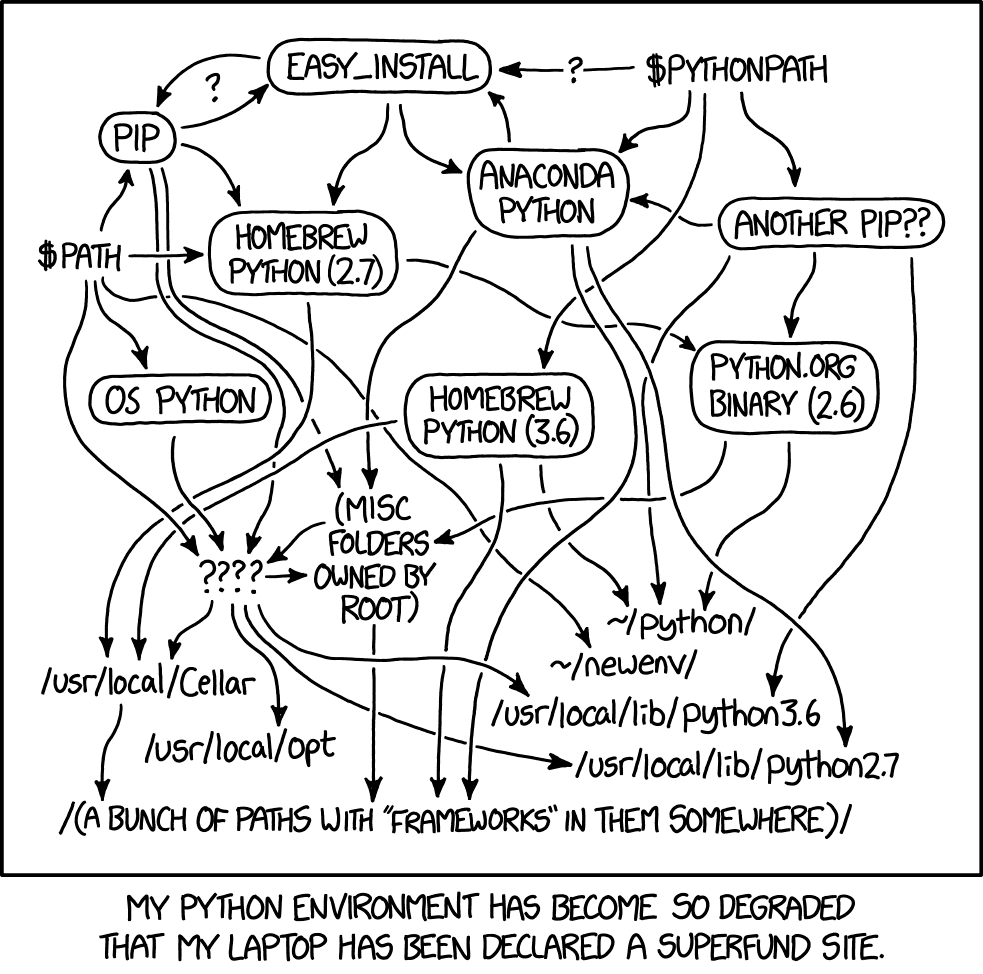
We will do so using the Anaconda distribution of Python. Getting set up with Anaconda is a somewhat detailed process, outlined below.
You should follow these instructions even if you already have Anaconda installed. Uninstalling and reinstalling is recommended.
a. Install Anaconda
You can find installers for Anaconda here. Choose the one appropriate to your operating system.
If installing on macOS, do not install Anaconda in the root-level opt directory. It is recommended that you install in the folder directly under your username. This is the same folder in which your “Downloads” folder exists. In some cases, Anaconda may suggest installing in a folder called opt under your username; this is fine.

b. Create the PIC16B Anaconda Environment
- Open Anaconda Navigator.
- Navigate to the Environments tab.
- Choose “Create.”
- Create a Python 3.8 environment named “PIC16B.”
c. Install packages
Still in the Environments tab, search for the following packages on the right-hand side (you may need to update the index).
nb_condanb_conda_kernelspandasmatplotlibplotlyscrapy
Check the box beside this package, and then click “Apply” to install.
In the future, if you ever attempt to import a package and encounter an error, you should attempt to install it via the Environments tab.
In this course, we’ll primarily demonstrate TensorFlow using Google Colab, which has some significant benefits related to speed of computation. However, you can also try to install the tensorflow package via the package manager.
Note: If you want to use command lines to install Python packages in the future, try to follow prompts that look like
conda activate PIC16B
conda install --channel=conda-forge [package name]
rather than the ones that start with pip install. If this sentence didn’t make sense to you, you can ignore it and stick to using Anaconda navigator.
d. Launch Jupyter Lab
Now go back to the “Home” tab. Launch Jupyter Lab. You may need to install the app first.
Create a new Jupyter notebook. Change the kernel to the PIC16B environment that you created in Step 1b.

e. Verify
Type the two lines below into your blank Jupyter Notebook and run them, adding in your name. If you do not encounter an error, then your setup was successful. Otherwise, contact the instructor or TA for help.
import pandas as pd
print("My name is [your name] and I installed Anaconda and TensorFlow")
2. GitHub and GitHub Desktop
If you don’t have a GitHub account yet, create one on GitHub. You get a lot of free stuff as a student.
Also download GitHub Desktop, a graphical client for working with git. If you do not use GitHub Desktop (or another graphical client), you will need to work with git from the command line.
Connect your GitHub Desktop app to your GitHub account.
3. Pick Your Favorite Text Editor
Text editors allow you to make modifications to plaintext files. They are useful for coding, writing, and any other tasks that require the manipulation of plaintext.
I like to use Jupyter Lab or Visual Studio Code. For some reason, my VS code had trouble with Quarto, so I’m going to use Jupyter Lab.
Sublime Text and Atom are also popular. Some people also use Notepad++ but that might not be the best option for beginners. Beyond this course, if you expect to write a significant amount of code in your career then it is worthwhile to find a text editor that you like.
Once you’ve installed a text editor that you like, try opening it up and modifying a text file.
Next, try writing a simple Python file and running it from your editor. To do this, first paste the following into a file called my_script.py:
print("I can run Python scripts from my text editor!")Then, open a terminal window from your editor. In the terminal, write python3 my_script.py and hit enter. You’ll need to ensure that your terminal is in the same location as the file my_script.py. We’ll learn more about how to use the terminal and text editor in an upcoming Discussion activity.
4. Install Quarto
In this course, we’ll use Quarto to create a simple, attractive website on which to host our homework and project submissions.
Follow the instructions here: https://quarto.org/docs/get-started/
Also, sign up at https://quartopub.com with your GitHub account.